 photoartflight
2 Shot Weathered Feather Image
Posted on February 27, 2017
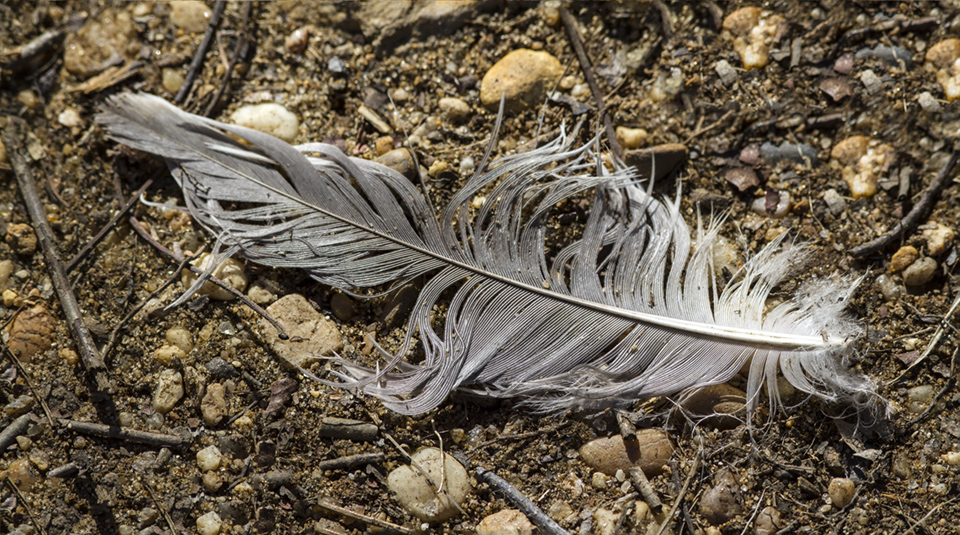
When walking, looking for photo subjects, I like to find detail subjects along the way. They are good for accent images or just something interesting to look at. They can add interest to the blog or for use in an ebook. Often I have a long lens on my camera for Birds and other Wildlife when I am walking in a Nature area. But when I find smaller detail subjects, I do not want to change lenses. I usually also do not carry 2 large camera bodies and I do not like the quality of the iPhone images. So if I have a second camera it is usually a m43 camera with a 14-140mm lens. Or like I did here on these 2 images. I shot multiple images handheld with a 300mm and combined them in Photoshop. The featured image was 2 shots and the one below was 3 images. These were from a walk at the Plainsboro Preserve in NJ.

Feather on Path
Posted on February 27, 2016
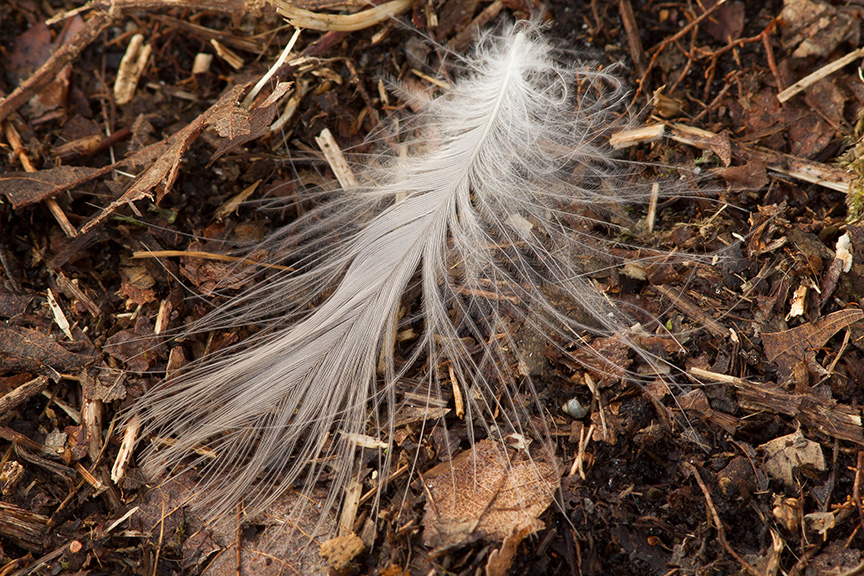
As I was leaving a local Nature Area, I noticed this feather on the path. I took a series of images to try a new technique a friend showed me. This technique helps eliminate noise and helps the fine details stand out. I opened them in Adobe Camera Raw, made my adjustments, then opened them in Photoshop, in layers and Auto-Aligned them. In Layers Panel, converted them to Smart Objects. Then chose Layer>Smart Objects>Stack Mode > Median. You can experiment with other stack modes also, but Median seems to work best. Your Photoshop version must be an extended version or a Creative Cloud version. Then flatten your image and you will see the noise is reduced drastically and to me seems a hair sharper. Maybe from just the noise reduction. I tried it in the studio with ISO 6400 and it made a huge difference. This image was at ISO 400.
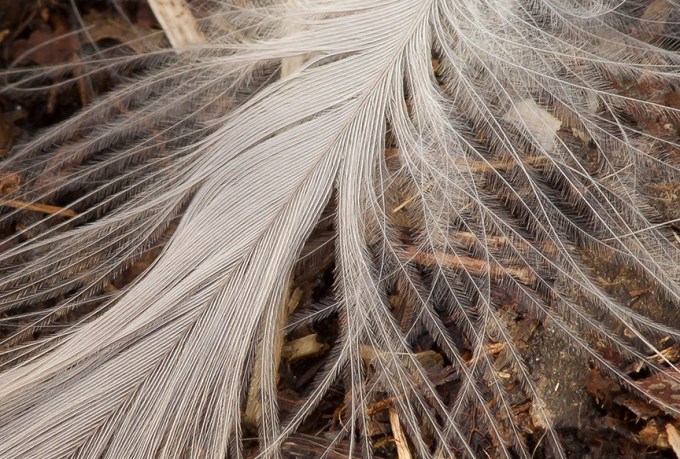
Tight Detail Crop from original file – 300 mm, 1.4X Series III Teleconverter, f/16, 1/15 sec, ISO 400. About 8 feet away.
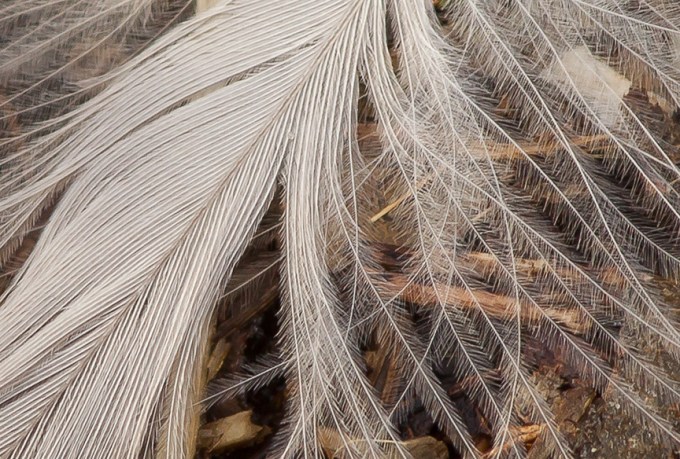
Tighter Detail Crop from original file – 300 mm, 1.4X Series III Teleconverter, f/16, 1/15 sec, ISO 400. About 8 feet away.
 photoartflight