 photoartflight
More Chrome IR Images From Plainsboro Preserve
Posted on May 10, 2024

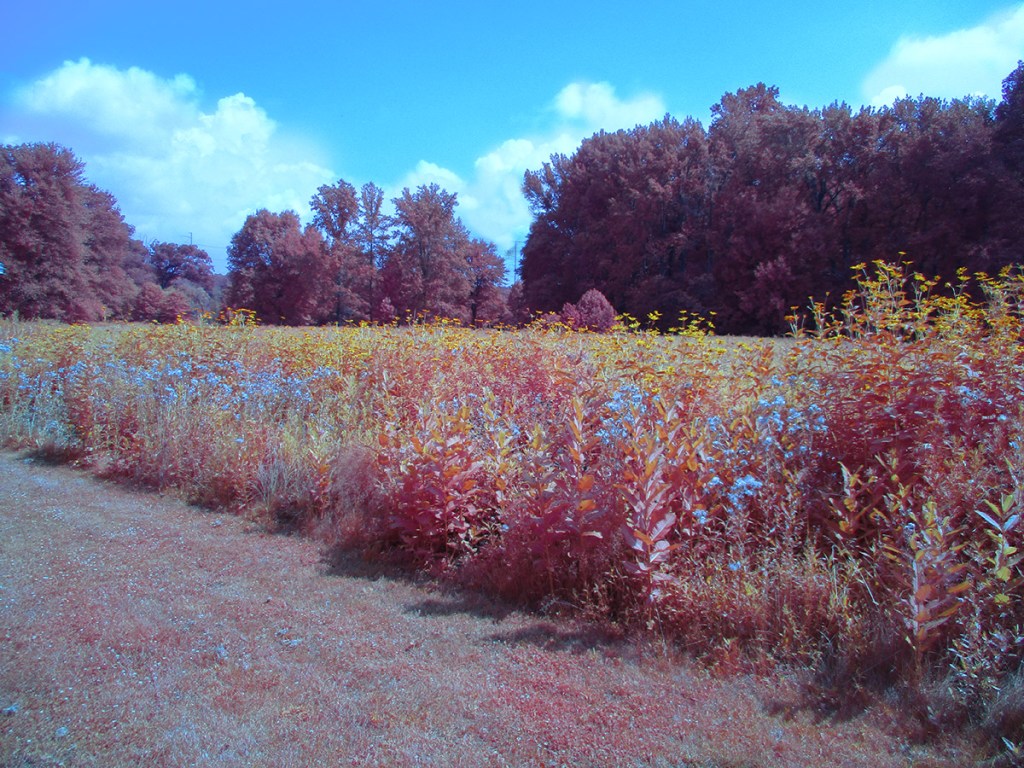
I am still going through my IR Chrome images from our walk at the Plainsboro Preserve. Most of the images are Multi-Image Panoramas except for the Featured Image which was cropped to straighten the image.

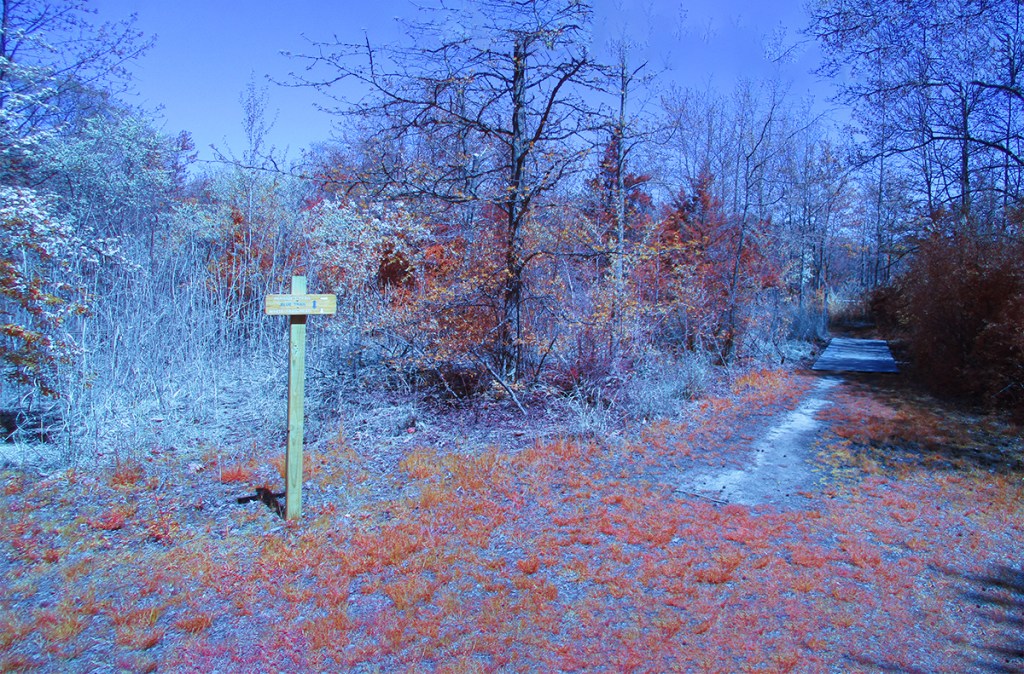

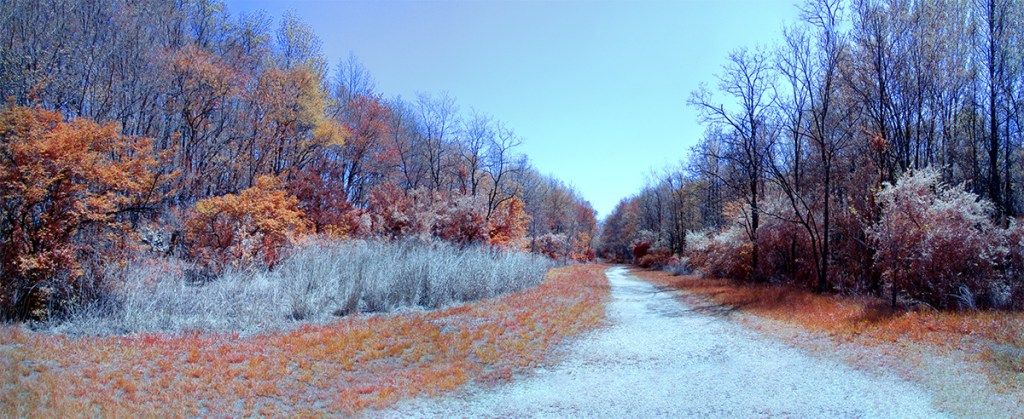




Chrome IR, 5mm, 20 Image Panorama (Full Frame Camera Equivalent ~28mm


Images With The InfraRed Chrome Filter
Posted on October 29, 2023
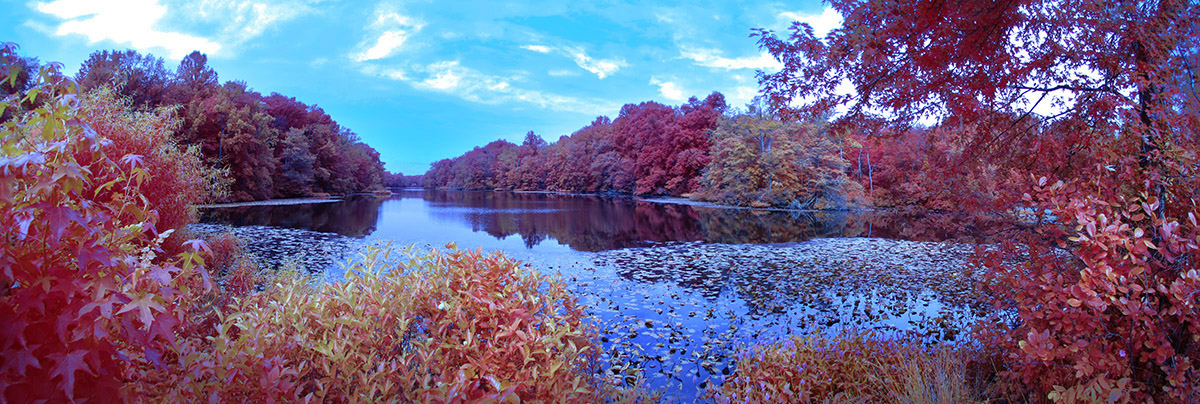
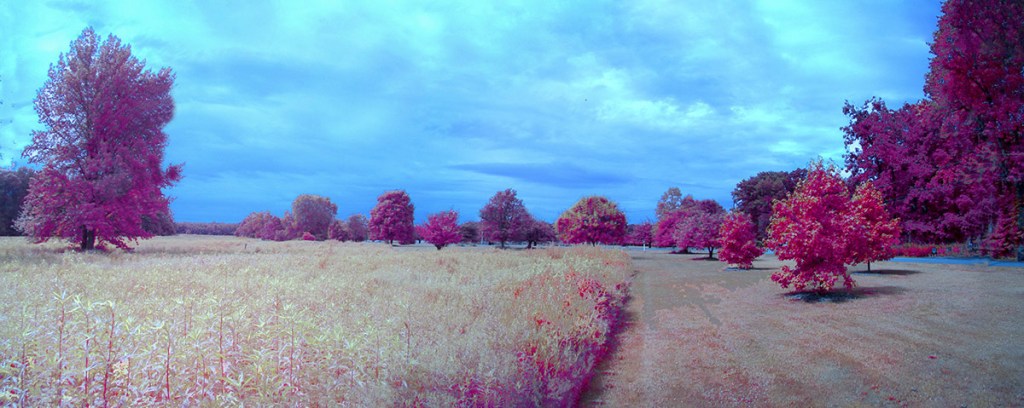
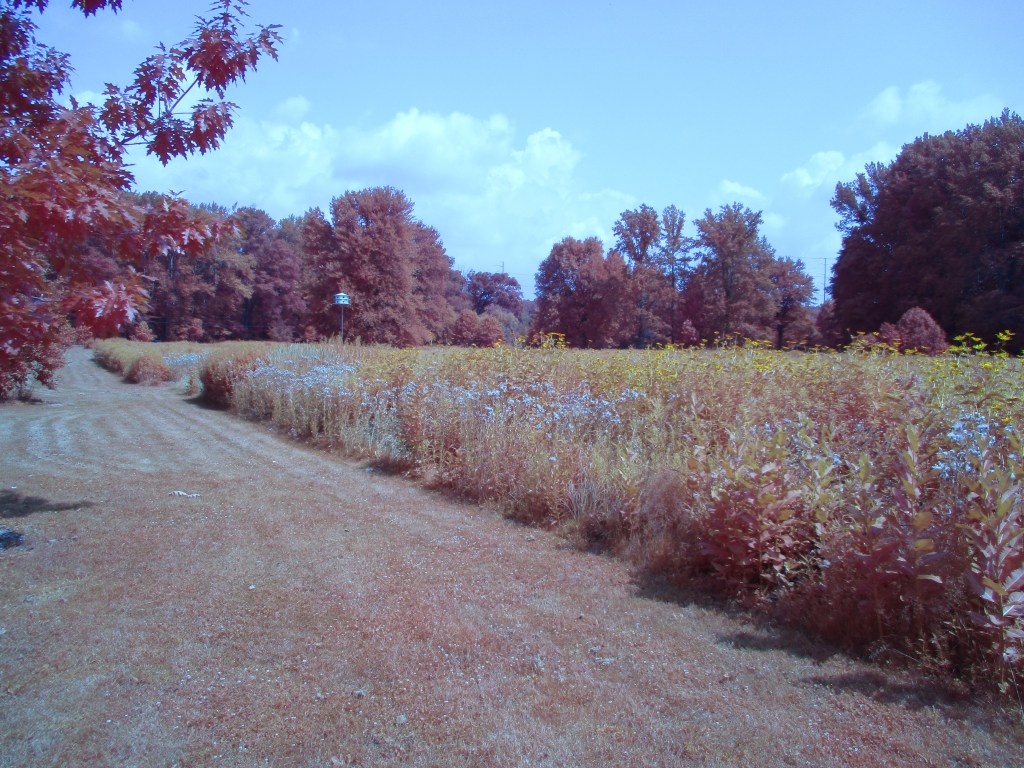
Lately I have been working with the Kolari CHROME InfraRed Filter. I have used regular B&W Infrared cameras but they were for Black & White InfraRed Images. I recently started using a Kolari InfraRed CHROME filter on my converted Canon Elph that gives you an interesting Infrared Color Image. The Infrared+Visible lens filter is designed to make your full-spectrum digital camera achieve the look of Kodak Aerochrome InfraRed film, straight out of camera, with no editing required. Made from a fused glass composite, this filter passes the perfect combination of light to recreate the classic interesting color look of Kodak Aerochrome Film with a full-spectrum camera. Kolari says you can have the Aerochrome look with no editing and no quality loss. For my liking I do have to “tweak” the Chrome Image file a little adding a little Saturation to the Finished Image. The Featured Pano Image is taken with 6 Images@ 5mm.


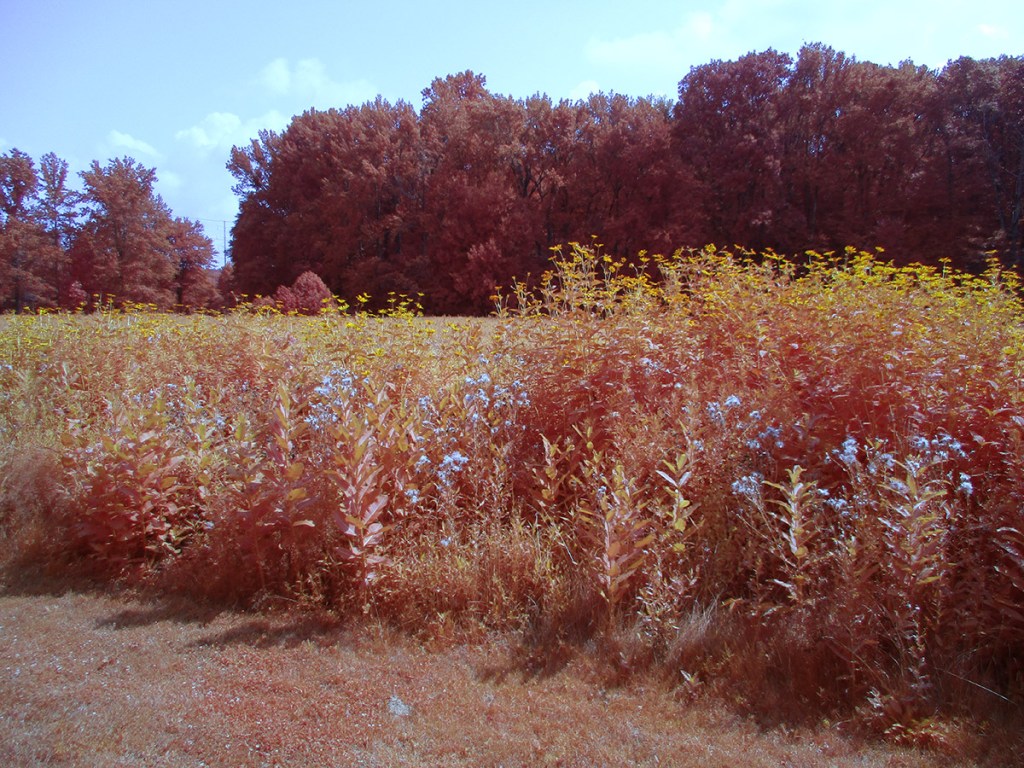

Infrared Panorama From Davidsons Mill Pond Park
Posted on November 15, 2021
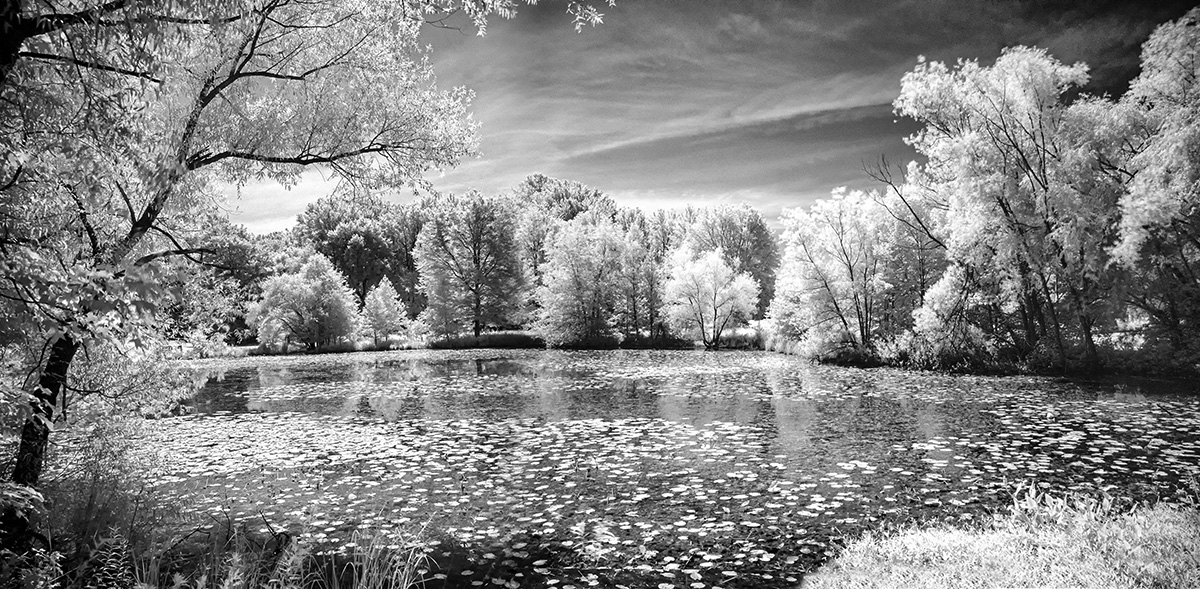
I was going through images on external drives and found a series of Infrared images taken at Davidsons Mill Pond Park. I chose 2 images from the series to make a longer 2 image Infrared B&W Panorama. These were taken with a Canon R with a 24-105mm lens and a Hoya r 72 InfraRed filter. To balance the images you also have to photograph a white card with the InfraRed filter for color correction and then converting to Grayscale B&W.


Meeting House Series In B&W Infrared
Posted on April 23, 2020
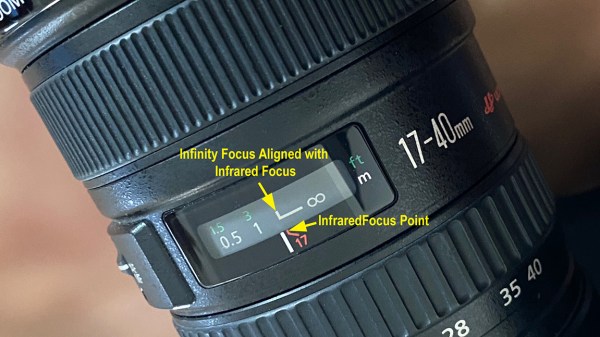
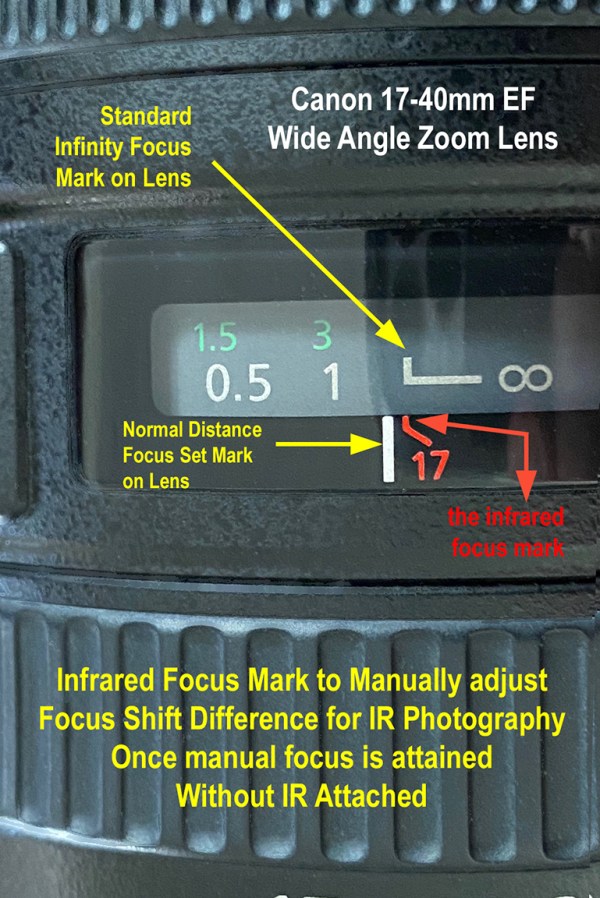
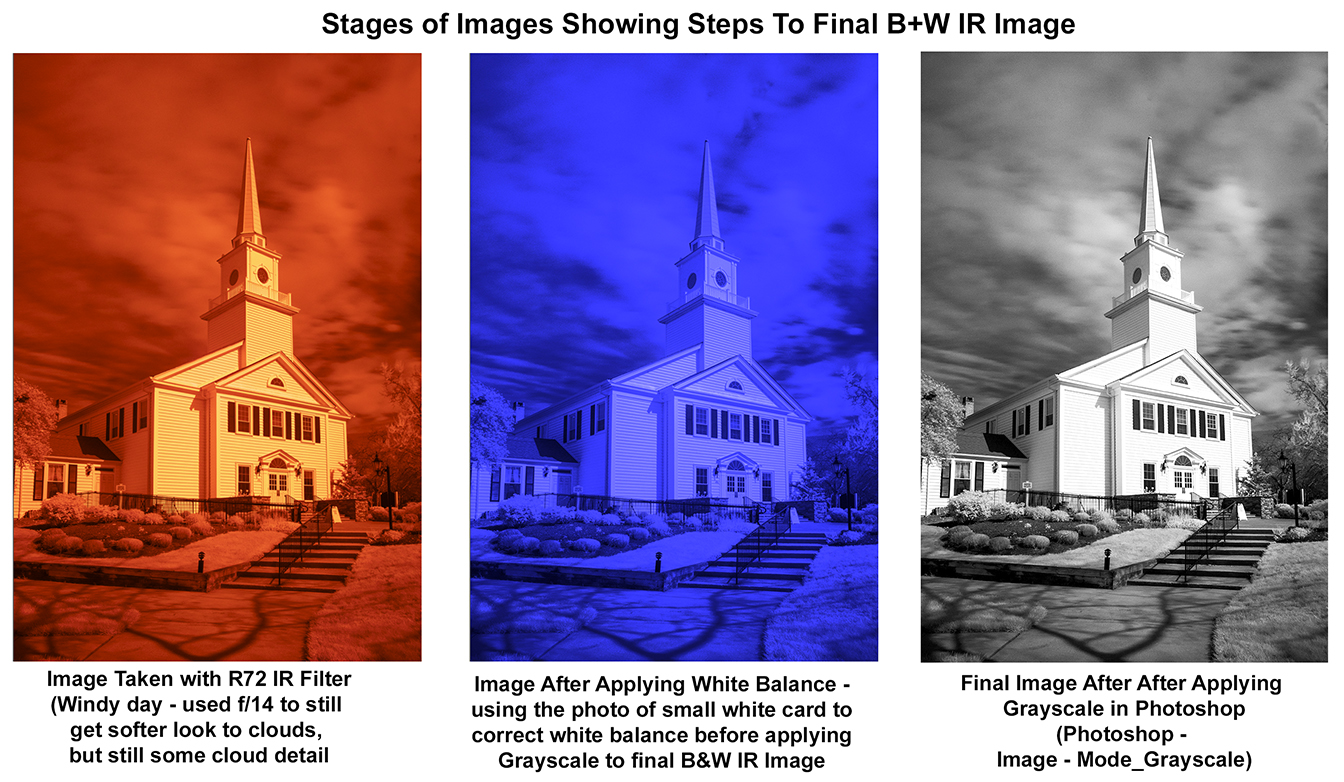
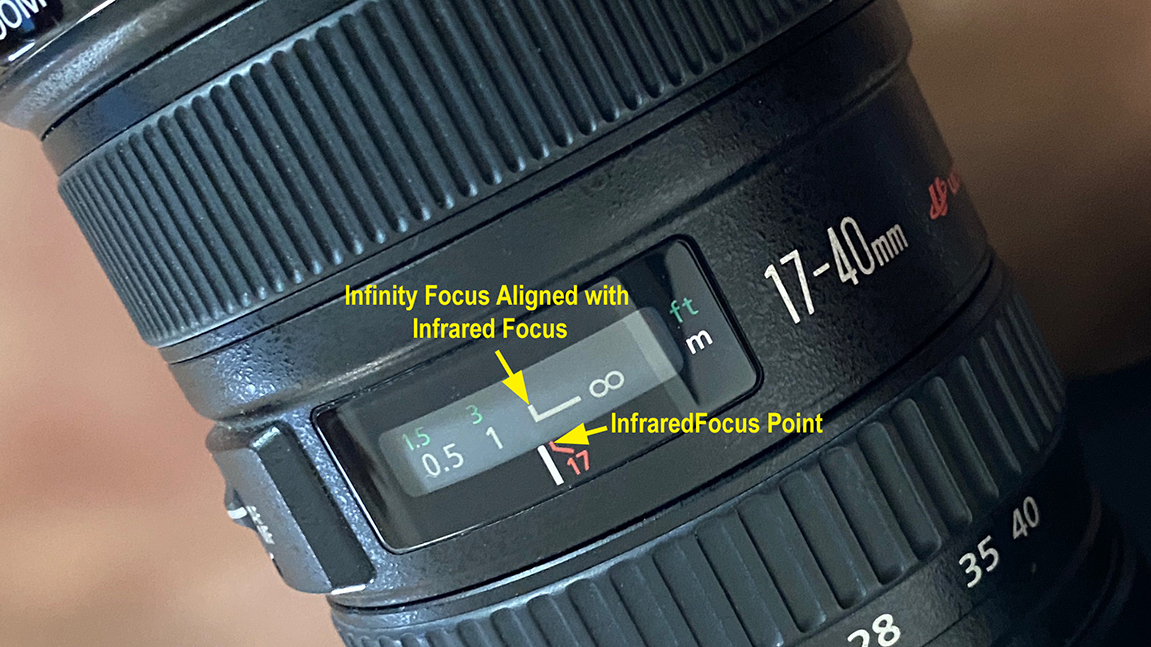
I believe we have had a stay at home order in NJ now for 34 days! We can not even go to a park to walk. But we can walk outside in our Condo Community (with a mask). So I thought I would go to the Meeting House on the Commons in our community. It is used for meetings, concerts and various church services. It is an interesting building & Commons for photography, some of which I have posted before. So I thought I would practice some B&W Infrared Photography. I shot a mix of multi-image panoramas along with single shot images. For this I was using a Canon R camera with a Hoya R72 Infrared Filter on with a Canon 17-40mm lens. All images were shot with the lens at 17mm. With the Canon R Mirrorless Camera Body I can actually see what I am composing/framing in the viewfinder with the R72 Infrared filter attached on the lens. On a standard DSLR all you see is BLACK in the viewfinder. So you would compose/frame your shot, then put the filter back on. Then you would manually adjust your focus point to the IR focus mark on the lens. (See images detailing this procedure below in this post). Since with the lens set to 17mm and shooting buildings my focus for all was set manually at infinity focus on the IR Focus marker. Also for shooting with this R72 filter it is necessary to photograph a white piece of paper for adjusting the White Balance when Editing your IR images.

Image showing R72 filter used and small white paper you need to photograph out in the field for preparing proper white balance for adjusting your files
When you Open your IR Image it has a Reddish Orange Cast from the R72 Filter. Use the steps below to convert to B+W Grayscale Image.
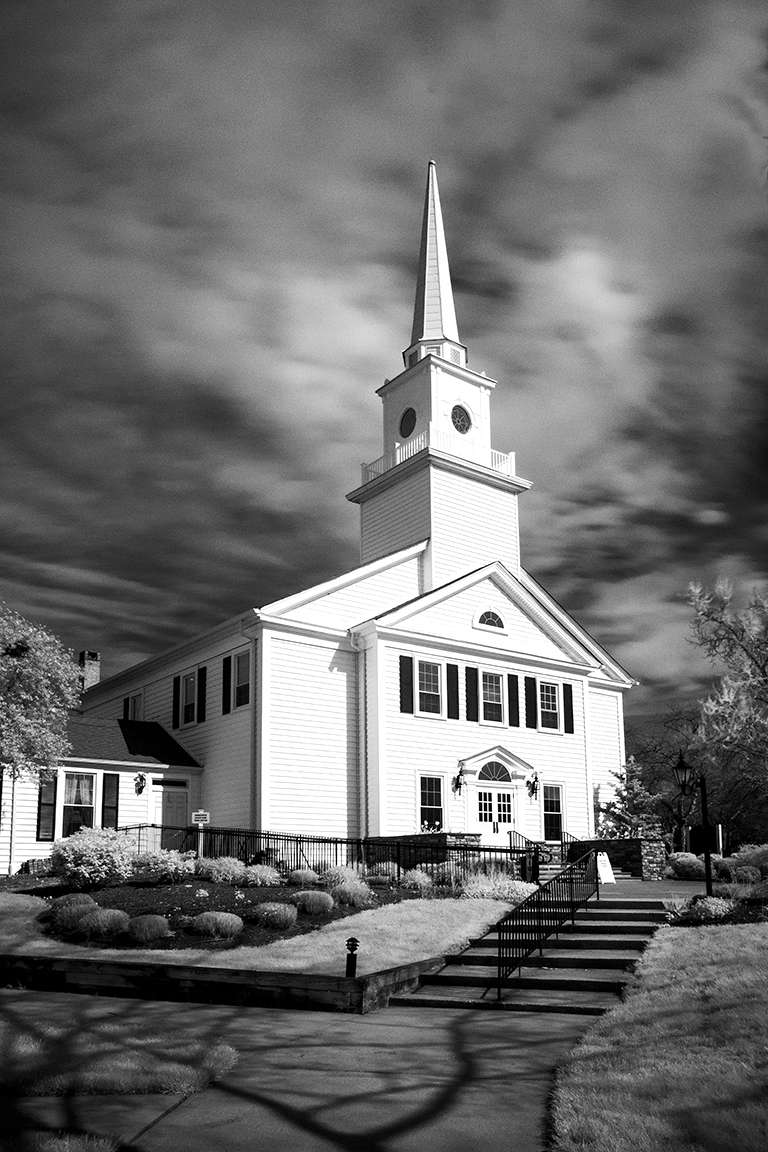
Since you are using long exposures because of the R72 filter, clouds seem to get an even smoother feathery look. I chose an f/stop to get a ~14 second exposure. If you go too long the clouds have even less detail which looks a little bland and gray.

17mm, f/14, 13 seconds
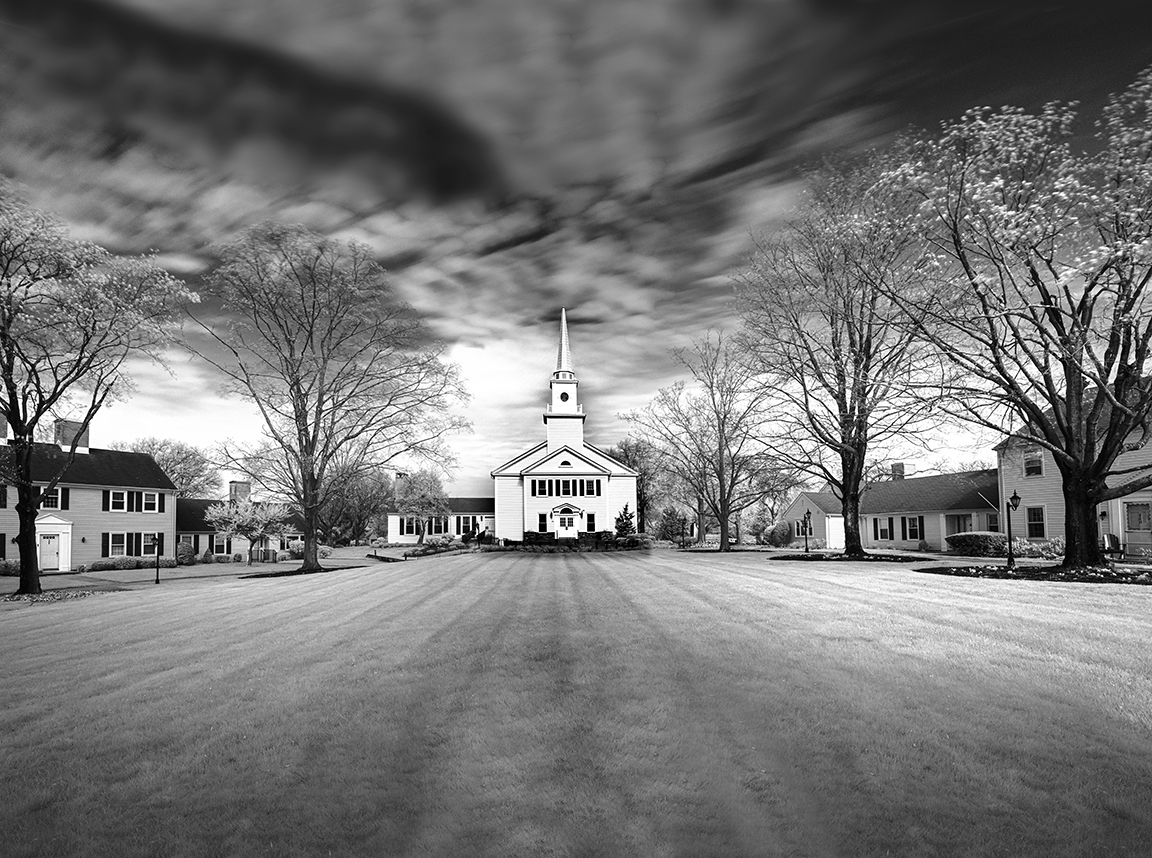
7 image panorama, @ 17mm

2 image panorama, @ 17mm, 14 seconds each
Below are a series of images showing the manual setting for infinity focus for InfraRed shooting. If shooting closer than infinity, take filter off, manual focus and adjust that spot to the IR Red line on focus area of your lens. Hopefully by seeing the 3 images below you will understand how to set the focus manually to the correct IR focus point.
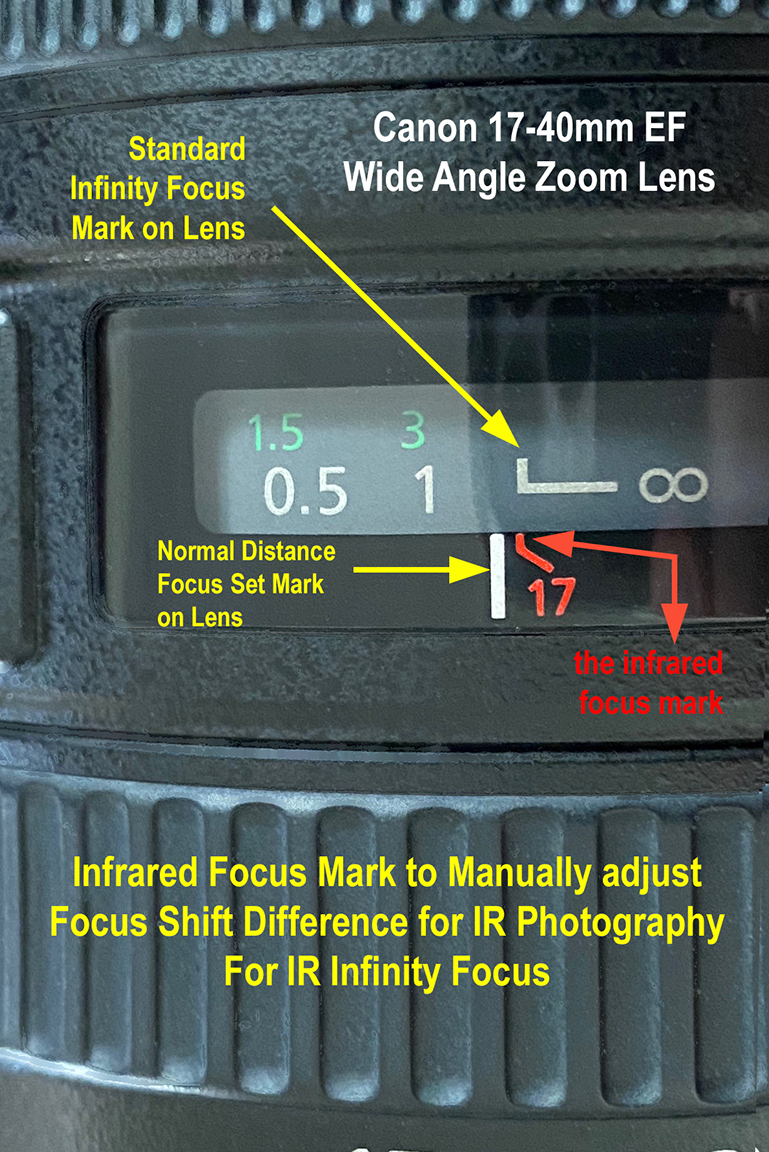

Lens Manually Set for IR Focus @ infinity
 photoartflight