 photoartflight
Weathered Feather Panorama
Posted on February 16, 2018
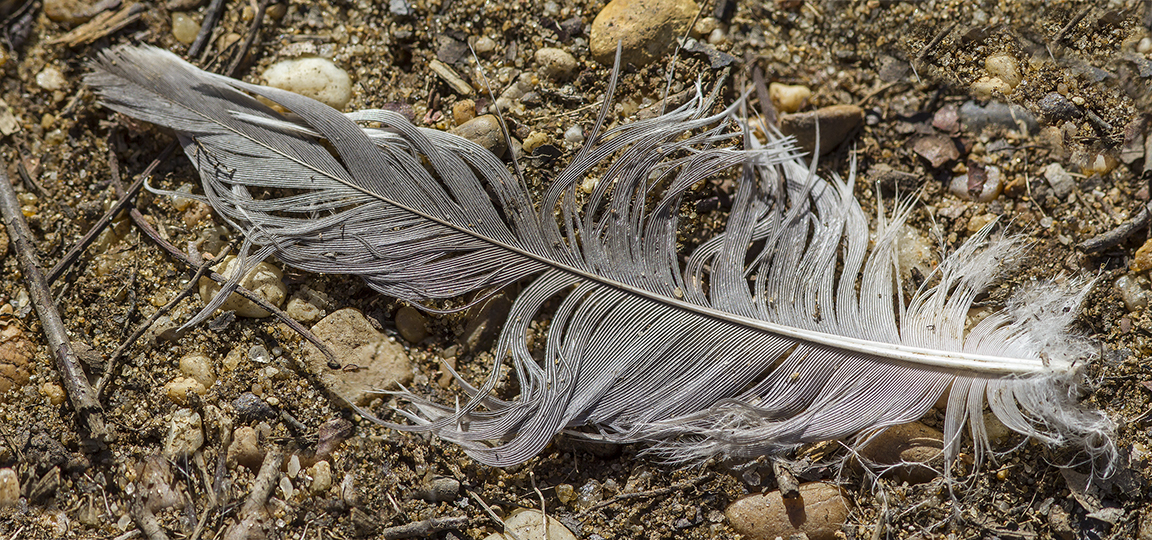
While taking a walk at the Audubon’s Plainsboro Preserve in NJ, I was looking for some photo opportunities. Plainsboro Preserve is almost 1,000 acres with a variety of trails and an almost 50 acre lake. Because it is a large area, most birds are distant, but you never know what you might find. It also seems to a have a lot of Beavers, so you see their handiwork (felled trees with their tooth marks) all around the areas near the water on the Preserve.
I found this weathered feather along the path and thought it looked interesting. I took 2 images, handheld with a 300mm f/4 IS lens with a 1.4X teleconverter. I like this Canon lens for an all purpose Walk Around lens. It is sharp, image stabilized, focuses fairly close on its own, very hand holdable, fairly lightweight and sharp. So I use this lens quite a bit for when I am just taking a walk with no idea of what I might photograph. If you carry extension tubes with you, you can even get closer for a very close, almost macro lens.
I used Photoshop to combine the two images, which most of the time works well! You just have to give enough of an overlap so it seems to be more accurate in lining the 2 images and automatically blending the final image. Every once in a while you might have to do a slight touch up.
Reddish-Egret – 2 Shot Pano
Posted on February 10, 2018
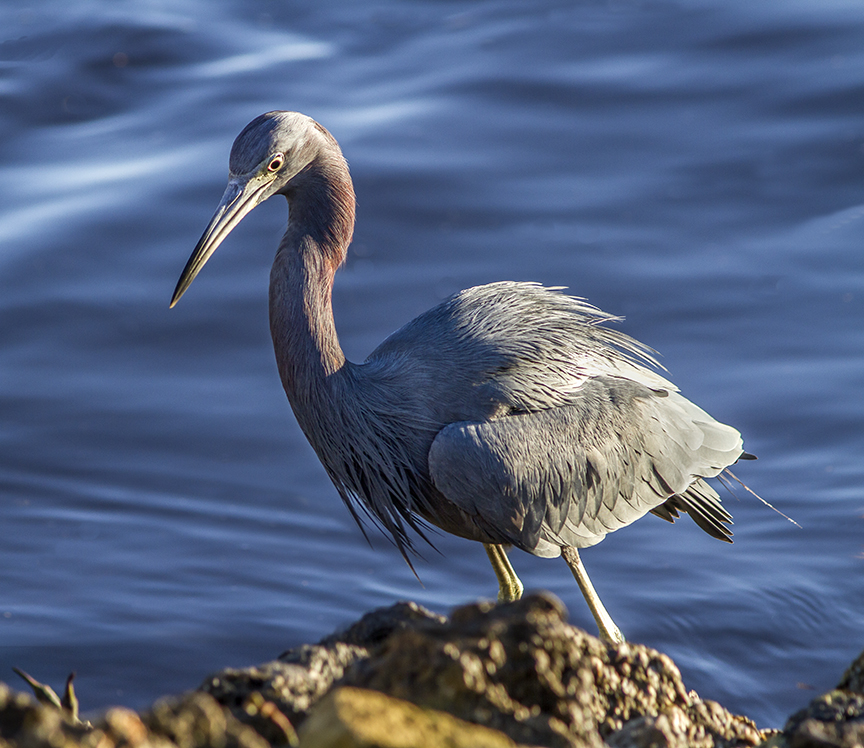
It is not often that while I am walking looking for photo subjects, that one comes so close I cannot fit it all in the viewfinder. So I try shooting my subject with 2 overlapping images. You have to take a few multiple images quickly, to try to avoid any movement of your subject. Usually a little movement, I can deal with. In Photoshop I try letting Photoshop automatically align and combine them. If that does not work I do it manually. So one way or another, it is a way to get the image.
The featured image is 2 horizontal images stacked vertically and combined.
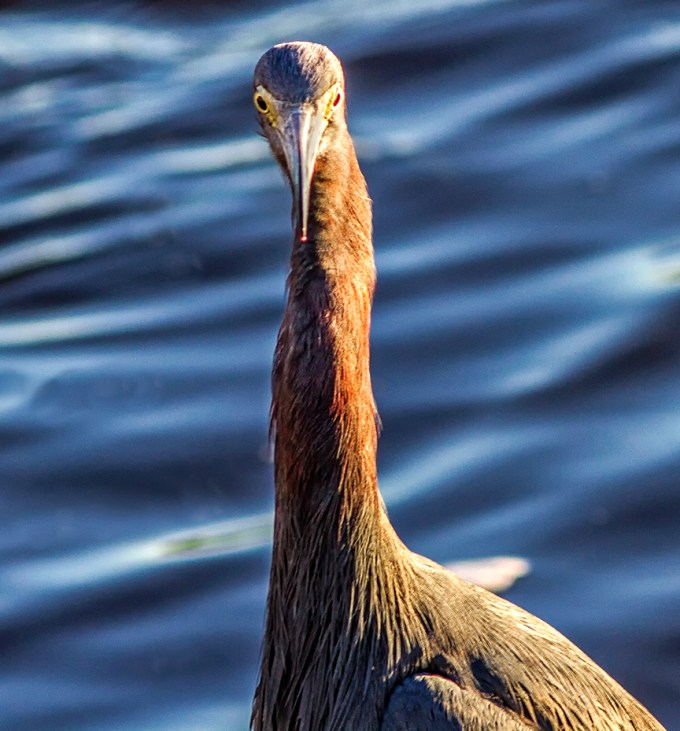
Another 2 shot composite. 2 horizontal images stacked in Photoshop. 300mm f/4 lens

Example – showing top half of image before combining and adjusting colors, etc. in Photoshop.
More Panoramas
Posted on January 16, 2018

A series of multi-image panoramas photographed at the Edwin B. Forsythe National Wildlife Refuge in Oceanville, NJ. Shot with a m43 camera @14mm. Featured image was 4 images, shot horizontally in sections, handheld, going from ground to the sky. Assembled in Photoshop. I find the m43 images take a little more care when assembling in Photoshop. Some need a little more “tweaking” or fine tuning than larger sensor cameras. But overall they are fun to use. A lot lighter to carry when you are wandering around looking for subjects to photograph. I still prefer my larger Canons, but sometimes it is nice to go “light”.

2 horizontal shots – stacked vertically in Photoshop. m43 format @14mm

A series of horizontal images, shot overlapping, from ground to sky. Assembled in Photoshop. m43 format @14mm
American White Pelican Panorama
Posted on January 10, 2018
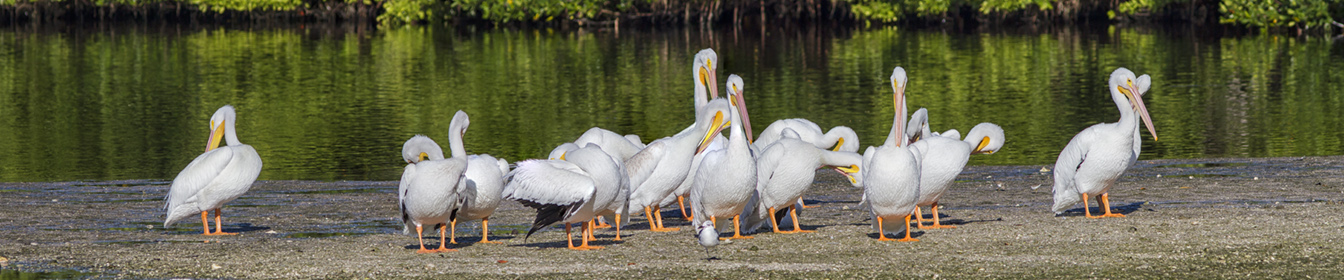
Another Group of American White Pelicans photographed along the Wildlife Drive at the J.N. Ding Darling NWR in Sanibel Florida. This was a 5 image panorama, handheld, shot with a 300mm f/4 lens, with a 1.4X teleconverter. When doing a pano like this, do not use auto exposure, especially with white subjects, because the exposures can vary, giving you different exposures which are harder to blend together. You then have to try to balance all the exposures before assembling the pano. Most people use a tripod for doing Panos, but I tend to do more handheld. The Pelicans are still moving, even slightly, so I still have to go in to the layered Photoshop file and erase some of the moving overlaps before the final “blending. The auto features usually works fairly well for the final “flattening” of the layers in your file. The hardest part is choosing which “mode” of auto align to use in Photoshop for the initial lining up of the layers. You might have to try a few of the choices and see which one works best for your subjects. It has a lot to do on the angle you are to your subject and also the focal length of the lens you are using. In Photoshop, under EDIT, go to auto-align. Then you have a few choices. It is a trial and error to see which method works best for your image. Auto align usually works fairly well, but sometimes “Cylindrical” works well for what I shoot also. It really depends on the focal length of the lens you are using and the angle you are to your subjects. Then go to Auto Blend to “blend” them together. The other choice here is “Stack” which is used for combing a set of images you shot for more depth of field, for a sharper image across a wider area, in simple terms. Under Auto Blend also check on the Box – content aware fill transparent areas of your merged files. This fills in empty areas with what Photoshop thinks is missing, and works fairly well. This happens more with wider angle lenses because of the changing angle of horizons, skies and foregrounds have different perspectives as you are shooting from left to right. This comes in handy especially if you are hand holding your camera or shooting with a wide angle lens. Also Once you flatten your image, I sometimes crop from the top and bottom to make a better “composed” image. Sometimes shooting panos, you are shooting “Taller or Wider” than you want your final image. So cropping in helps the composition. The above is just a simple overview of shooting panoramas, you can find lots of info online.
Setting Sun Captiva Island, Florida
Posted on January 7, 2018

As I was walking back from the beach to our rental, I liked the colors in the sky and the backlit trees along the path. I had a 24-105mm zoom with me, but wanted a little wider view, so I did a two shot. I also positioned the starburst, from the setting sun to be somewhat centered for the final 2 shot pano. The trees on the left overlapped for quite a few trees, so I ended that side with the main single set. I liked the colors in the sky and waited till the sun was just starting to go below the distant tree line so it looked more dramatic, but was still above the horizon above the water to get the starburst. I was using a Canon body with a cropped sensor so I did a 2 shot handheld overlapping panorama and assembled it in Photoshop. 24mm @ f/11.

Another view further down the path, single image.

View from the entrance of the path
Black Skimmers In Flight Panorama
Posted on May 28, 2017

When we were at the Edwin B. Forsythe National Wildlife Refuge a week ago, I tried some in-flight panoramas of the Black Skimmers. I was wondereing if it was possible to shoot a burst of images and pan at the same time. It works, but helps if you have some details in the background that PhotoShop can align the images to, instead of just Blue sky. It is a little harder if they are coming at you. It also helps, because of panning while shooting, to use a fairly high shutter speed. A panning gimbal head on a tripod would be good also, but I was handholding the camera for this series. The featured image was 5 shots, brought into Photoshop, automatically aligning the 5 shots and blending them. The more panos you try, the better they seem to come out. I could get large flocks of birds with a wide lens, but I like the challenge, plus I do not want a lot of extra background top and bottom. Also I tend to print images quite large. I will probably clone out the water tower and buildings later.
Another panorama from the same day, a different flock of Black Skimmers in the water. (With a few gulls in the background)

Black Skimmers and Gulls 6 Shot, overlapping images, panorama, @400mm
 photoartflight